GTA 6 PS5 screenshots: save, find and copy your captures
Capture GTA 6 on PS5, locate missing clips in Media Gallery, copy files to USB and keep spoilers out of what you share.
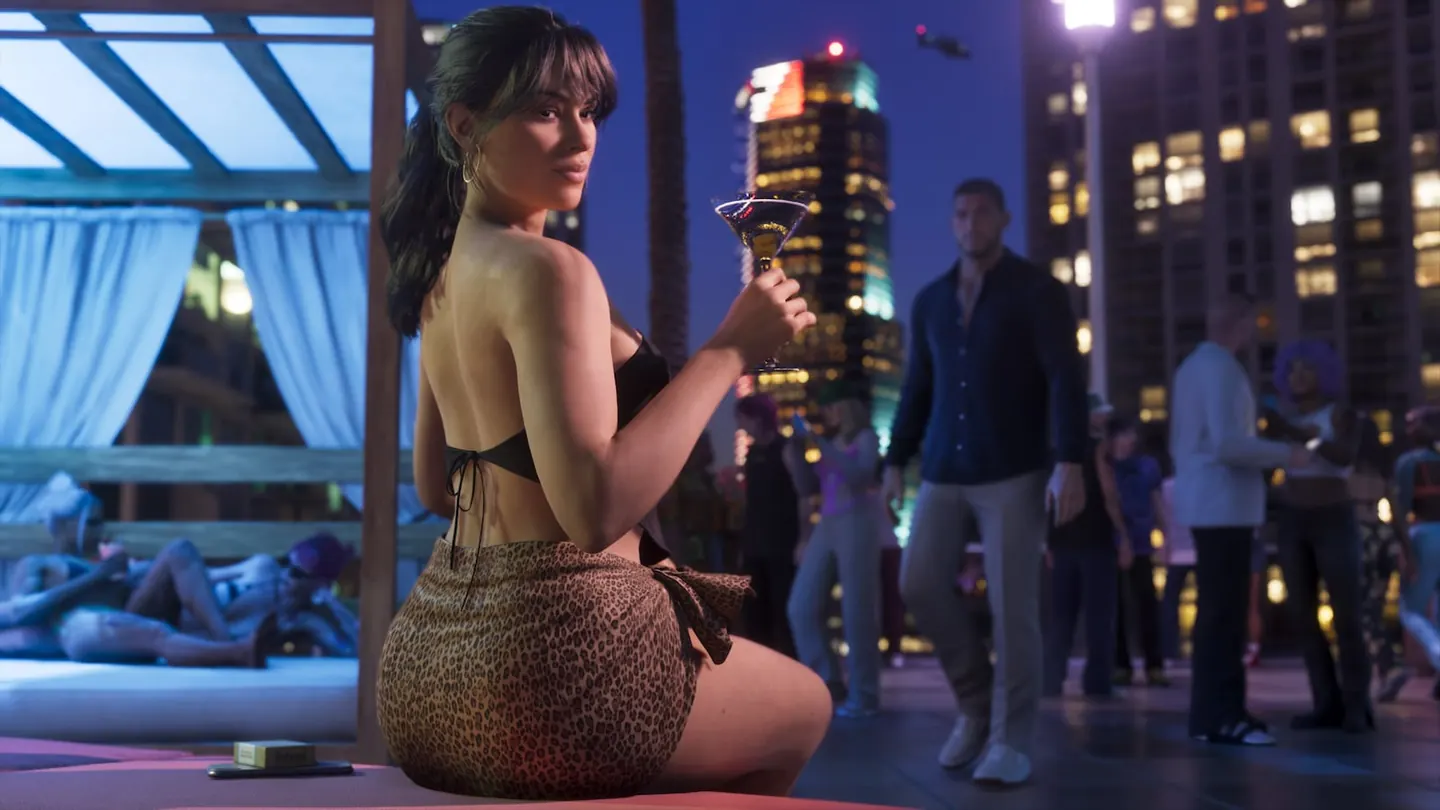
The GTA 6 screenshot looked perfect. Then you left Photo Studio and could not remember where the PS5 saved it. The game composes the scene; the console captures and stores the file, and those are two different steps.
Sony's capture instructions say to press the DualSense Create button and select Take Screenshot. If you are recording instead, use Start New Recording, then stop it from the same menu.
Save a GTA 6 screenshot on PS5
Set up the scene with our Photo Studio guide, hide the game's interface if that is the shot you want, then use the console capture control. Before leaving, check the saved result rather than assuming the button did what you expected.
Sony notes that Create-button behaviour is customisable under Settings > Captures and Broadcasts. If yours behaves differently from a friend's console, inspect those shortcut settings first.
Where the screenshot went
The Media Gallery guide explains the Recently created card and Media Gallery. Recent captures are useful for the image you just took; the gallery is the place to manage the full collection.
To copy a selected capture onto an attached USB drive, Sony gives More > Copy to USB Drive. Keep the original file when you want to edit later; a re-saved social-media download may have lower quality than your capture.
Save the moment before it disappears
For an unexpected encounter, Save Recent Gameplay is the console option to inspect rather than starting a new recording after the moment has passed. Sony says available recent-gameplay durations range from 15 seconds up to an hour, and some scenes cannot be captured.
This is PS5 system guidance, not a promise that every GTA 6 sequence allows recording.
A quick spoiler check before sharing
Our recommendation is to inspect the entire image: mission text, subtitles, map markers, a character in the background, and the caption you plan to write. Cropping the obvious reveal does not help if your title gives away the ending.
Use spoiler-avoidance habits in reverse when publishing your own captures: label sensitive material, keep the preview image clean, and let other players choose when to see the reveal.
Sources
- How to view screenshots and video clips on PS5 consoles
PlayStation Support · Checked
Sony’s instructions for Recently created, Media Gallery and copying selected captures to USB on PS5.
- How to capture PlayStation®5 console gameplay and screenshots
PlayStation Support · Checked
Sony’s Create menu, recording options, custom capture settings and limitations on recording blocked scenes.
The conversation
Your take on Leonida.
Got a detail we missed? A theory worth arguing about? Make your case. Keep it friendly, and keep personal details out.
JavaScript is needed for this optional discussion; the full article is readable without it.
Keep going