GTA 6 photo mode: how to use Photo Studio, lighting, filters and selfies
How to open GTA 6 photo mode (Photo Studio), use its camera, lights, effects and filters, take a clean screenshot and snap selfies with your phone.
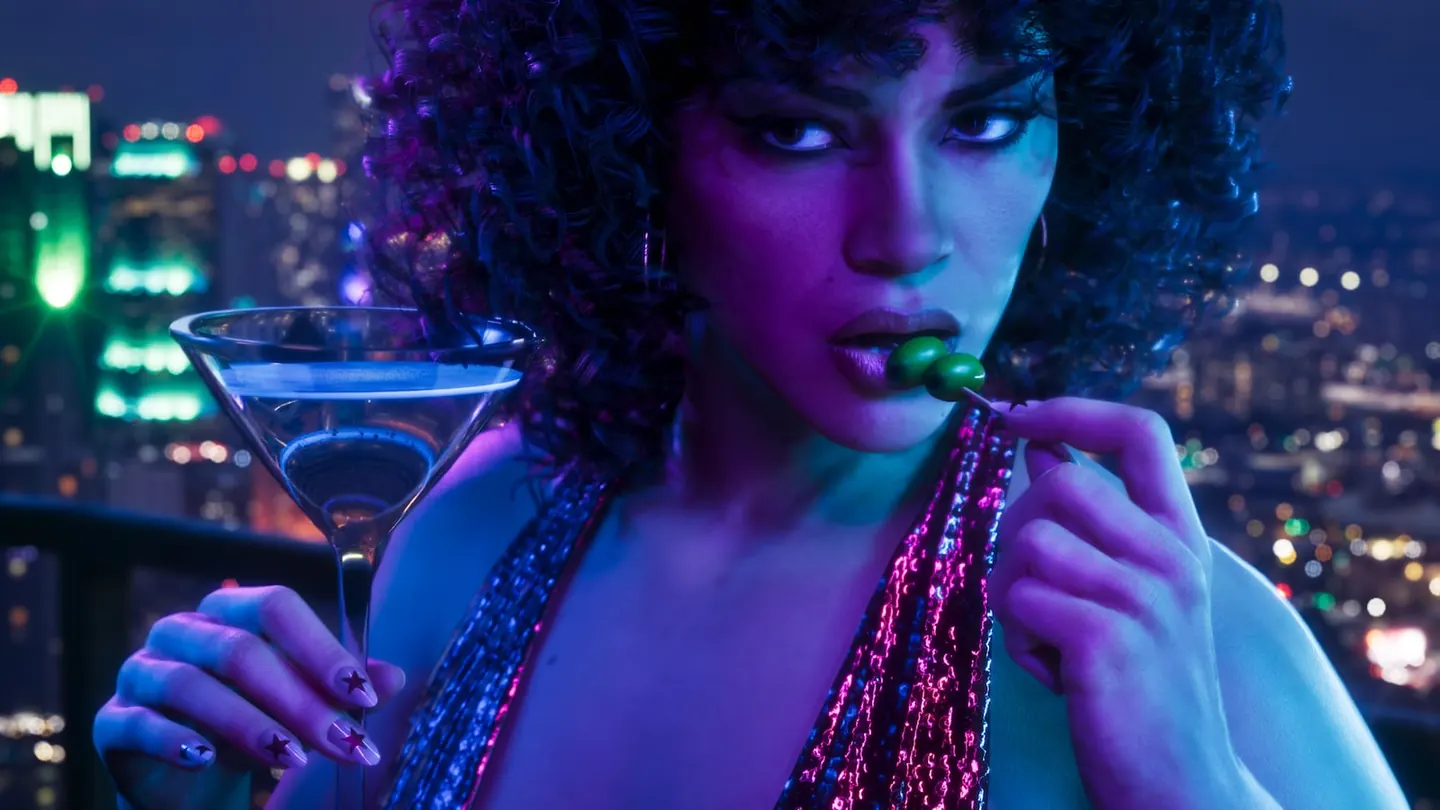
GTA 6 is the best-looking game Rockstar has made, so it is no surprise that half of social media is now Leonida sunsets. The game's photo mode is called Photo Studio, and it is far more powerful than most players realise. Here is how to use it.
How to open photo mode
You can use it almost from the start. GameRant says it is available as soon as you take control of Lucia in the prologue.
- Pause the game and choose Photo Studio.
- Or use the shortcut: GameSpot says Square on PlayStation or X on Xbox.
GameSpot notes that you can also open Photo Studio during some cutscenes, although options are limited there.
The tabs, explained
GameSpot breaks Photo Studio into these sections:
- Camera: rotate, zoom, turn off depth of field and even hide your character.
- Effects: exposure, contrast, tint, bloom and more.
- Lighting: place several light sources, such as stage lights or camera flashes, and adjust their intensity and range.
- Vehicle: toggle your car's lights.
- Overlay: vignette and filter strength.
GameRant adds the finer controls: grid lines, camera tilt, eight aspect ratios, field of view up to 48.5 degrees, bokeh, focus distance, grain, white balance, chromatic aberration and up to five light sources. There are 17 filters in total.
The best filters to try
GameSpot highlights three fun ones:
- Cartoon Universe, a light cel-shaded look.
- Found Footage, grainy and glitchy.
- Pixel Art, a retro 8-bit style.
How to take a clean shot
When your scene is ready, GameSpot says to press Hide UI (Triangle or Y), then capture the screen with your console's own screenshot button. That is the most reliable way to get a picture without menus.
Selfies and phone photos
Photo Studio is for staged shots. For selfies, use the Camera app on the in-game phone. GameSpot says you can change your pose and facial expression, and if your partner is with you, they can pose in the picture too. GameRant notes the phone camera unlocks once the prologue moves on to Jason.
Five quick tips for better shots
- Golden hour makes everything look better. Shoot at sunrise or sunset.
- Use depth of field to blur busy backgrounds.
- Add one light, not five. A single coloured light looks more natural.
- Try different aspect ratios. Vertical shots work best on phones.
- Hide the HUD effects like low-health indicators before you shoot.
Looking for places to shoot? Our Vice City first look, Leonida Keys guide and screenshot details guide are full of ideas.
Sources
- How To Use Photo Mode In GTA 6
GameSpot · Checked
Attributed launch-week guide; steps, locations and figures are the publication's findings, not ViceTide testing.
- GTA 6: How to Use Photo Mode (& Take Selfies)
GameRant · Checked
Attributed launch-week guide; steps, locations and figures are the publication's findings, not ViceTide testing.
The conversation
Your take on Leonida.
Got a detail we missed? A theory worth arguing about? Make your case. Keep it friendly, and keep personal details out.
JavaScript is needed for this optional discussion; the full article is readable without it.
Keep going