GTA 6 best settings for PS5 and Xbox: motion blur, HDR, aim and camera
GTA 6 has no graphics modes, but these settings still make a big difference. Motion blur, HDR, aim assist, camera shake and TV tips for every console.
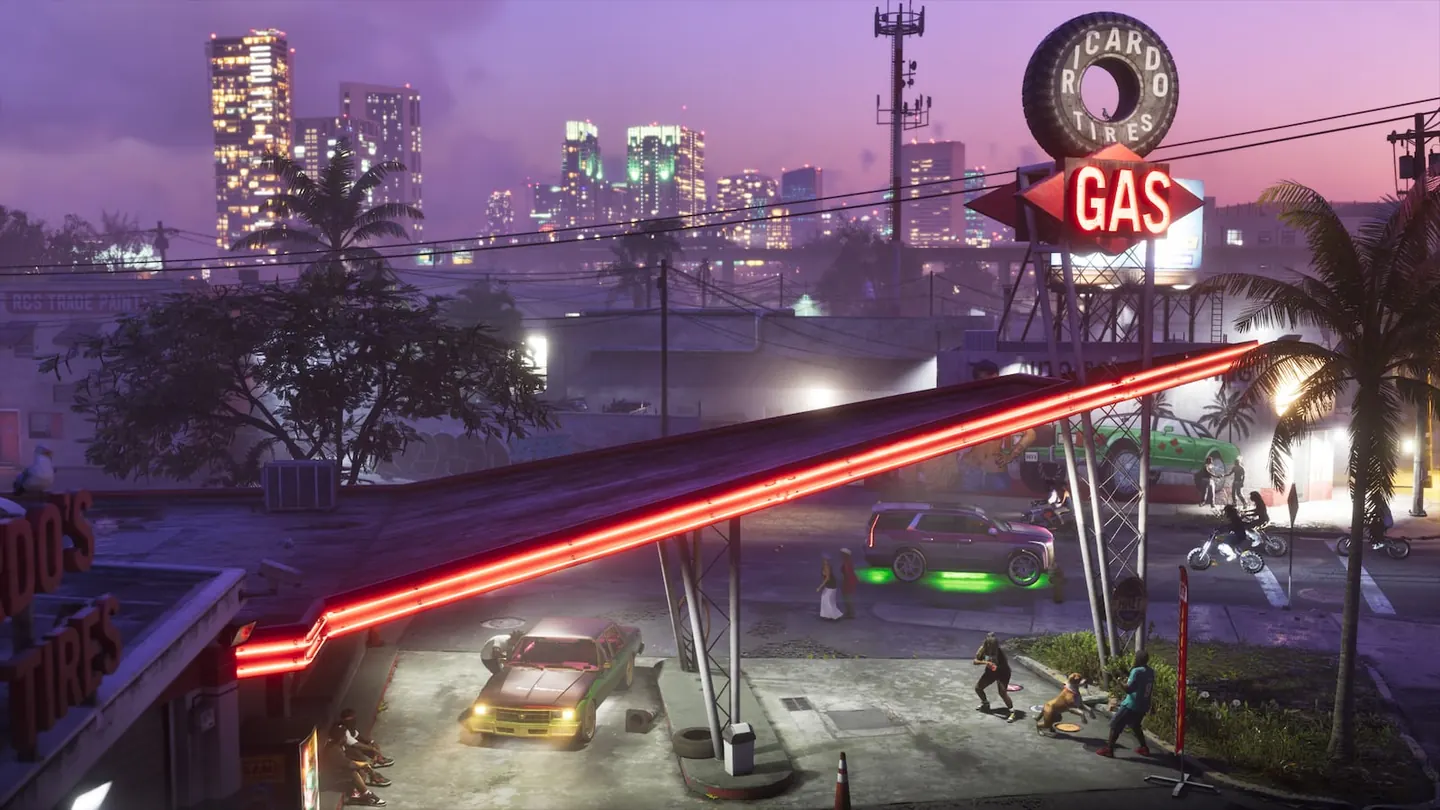
GTA 6 runs at a locked 30fps on every console and has no graphics or performance modes. That does not mean the Settings menu is boring. A handful of changes make the game sharper, more comfortable and more responsive. Do them before your first long session.
First, know your console
GamerBolt summarises Rockstar's technical breakdown: PS5, PS5 Pro and Xbox Series X render at 1440p internally and output 4K, while Series S renders at 720p and upscales to 1080p. All target 30fps. The PS5 Pro adds PSSR reconstruction and ray-traced shadows, with steadier frame pacing according to Digital Foundry. None of that can be changed in the menu, so focus on what can.
Display settings
KeenGamer points to the Display tab for the biggest comfort gains:
- Motion Blur Strength: drop it to 0 for the sharpest image during fast turns and chases. GamerBolt notes that some players find 2 or 3 smoother at 30fps, so try both on a busy road.
- HDR Calibration: turn HDR on in your console first, then run the in-game calibration. Do not copy someone else's numbers. Dark streets should look dark, not like flat black patches.
- Hit Effects Intensity: lower it if screen flashes in firefights bother you.
- High Contrast Shaders and Colorblind Mode: useful accessibility options for spotting enemies and interactables.
An HDR tip highlighted in Engadget's launch blog: on some newer TVs, you may need to turn off the set's automatic tone mapping to calibrate HDR properly.
Camera and comfort
- Camera Shake: turn it off. It steadies aiming and helps with motion sickness.
- Crash camera: set it to the lowest setting. KeenGamer warns it cuts away during collisions, which is the last thing you want in a police chase.
- Kill camera: keep it if you like the drama, lower it if it breaks up longer fights.
Aim settings
Targeting defaults to Partial. KeenGamer explains the options: Lock-On snaps to targets, Partial slows the reticle near enemies, and Free Aim removes assist. Aim Assist Strength runs from 0 to 4. For most players learning the new gunplay, Partial with a high assist is the sweet spot. GamerBolt suggests starting sensitivity around 6 to 7 and adjusting from there.
GTA 6 has no difficulty setting. Instead, the Gameplay tab offers Accessible Combat, which lowers enemy health and incoming damage, plus options to simplify minigames. There is no shame in using them.
Movement
Sprinting is an L3 or LS click. Setting Movement Speed to Jog in the Gameplay tab saves your thumbs and your controller sticks.
TV checklist
- Switch the TV to Game Mode.
- Turn off motion smoothing such as TruMotion or Motionflow, which adds input lag.
- 120Hz output does nothing for GTA 6 at 30fps.
Once you are set, read why the game is capped in our 30fps explainer. If you are still choosing hardware, see the best console guide.
Sources
- Best GTA 6 Settings to Change First - Motion Blur, Aim, and PS5 Pro
KeenGamer · Checked
Attributed settings guide describing menu options; recommendations are general and preference-based.
- GTA 6 Best Settings for PS5 and Xbox Series X/S
GamerBolt · Checked
Attributed settings guide; per-console resolution figures are cited there from Rockstar's technical explanation and Digital Foundry.
- GTA 6 launch day: Live updates on the biggest game of the year
Engadget · Checked
Attributed live blog of editor impressions and launch notes; opinions are the editors' own.
The conversation
Your take on Leonida.
Got a detail we missed? A theory worth arguing about? Make your case. Keep it friendly, and keep personal details out.
JavaScript is needed for this optional discussion; the full article is readable without it.
Keep going